
About Vimo
Vimo Rebinder is a no-code, app-specific keyboard workflow tool for Windows and macOS. It helps you keep familiar shortcut habits across different apps while Vimo runs the matching shortcut behavior for the current app.
Every app speaks a different shortcut language
Section titled “Every app speaks a different shortcut language”Browser tabs, editors, office suites, design tools, and system actions all use their own shortcut rules. The same intention can become a different chord in every app, so the user pays the memory cost, the finger movement cost, and the context-switching cost.
Vimo turns those scattered shortcuts into a structured personal workflow. It keeps your command layer consistent, then sends the shortcut that matches the app currently in use.
Vimo does not add more shortcuts. It reduces the cost of using them.
Before / After
Section titled “Before / After”| Without Vimo | With Vimo |
|---|---|
| Different shortcuts in every app | One consistent personal workflow |
| Awkward multi-key combinations | Easier, structured shortcut sequences |
| Memorizing isolated key combinations | Functional groups and spatial layouts |
| Writing and maintaining scripts | Visual, no-code configuration |
| Rebuilding setups from scratch | Presets and reusable app profiles |
How Vimo works
Section titled “How Vimo works”Vimo is more than replacing one key with another. It treats shortcuts as a workflow that can be organized, adapted, and used consistently:
- Your command habits stay familiar.
- The active app receives the shortcut that fits it.
- Related actions stay together by function and position.
- Available actions can remain visible in context instead of living only in memory.
Not Just Another Key Remapper
Section titled “Not Just Another Key Remapper”Traditional key remappers change which key produces which input. Automation and scripting tools expand what the computer can do, often with more power and more setup work.
Vimo sits in a different layer: it reduces the memory, movement, conflict, and context-switching cost of using shortcuts. It overlaps with tools such as AutoHotkey, PowerToys, Karabiner-Elements, and similar utilities in some scenarios, but it is designed to be complementary rather than a full replacement.
See Vimo in Action
Section titled “See Vimo in Action”| Workflow | Example |
|---|---|
| Browser and editor tabs | Keep tab switching, closing, reopening, and movement under one familiar structure. |
| Window and desktop control | Put window actions, desktop movement, and repeat actions where your hand already expects them. |
| App-specific work | Let each app receive its own shortcut while you keep using the same Vimo command habit. |
Core System
Section titled “Core System”| Capability | What it means in practice |
|---|---|
| App-specific profiles | Use the same personal workflow across different apps while Vimo sends the matching shortcut for the active app. |
| Super Key | The entry point into Vimo’s command layer, allowing ordinary keyboard input to carry shortcut actions when needed. |
| Functional groups | Keep related actions together, such as window, tab, desktop, editing, or navigation commands. |
| Spatial key zones | Organize related commands around their group key so the layout stays easier to recognize and remember. |
| Floating Hints | Show actions available in the current context, reducing the need to memorize every shortcut. |
| Keyboard Navigation | Cover direction, selection, and common movement actions through Vimo’s keyboard workflow. Behavior can still vary by application. |
| Shortcut Manager | Review and manage system shortcuts, custom shortcuts, and app-specific mappings in one place. |
| Presets and insights | Start from prepared layouts and review shortcut usage over time. |
Concept Visuals
Section titled “Concept Visuals”These concept visuals come from Vimo’s product README. They show how Vimo organizes shortcuts into spatial layouts, functional groups, and contextual hints. They are references for the product model, not step-by-step instructions.
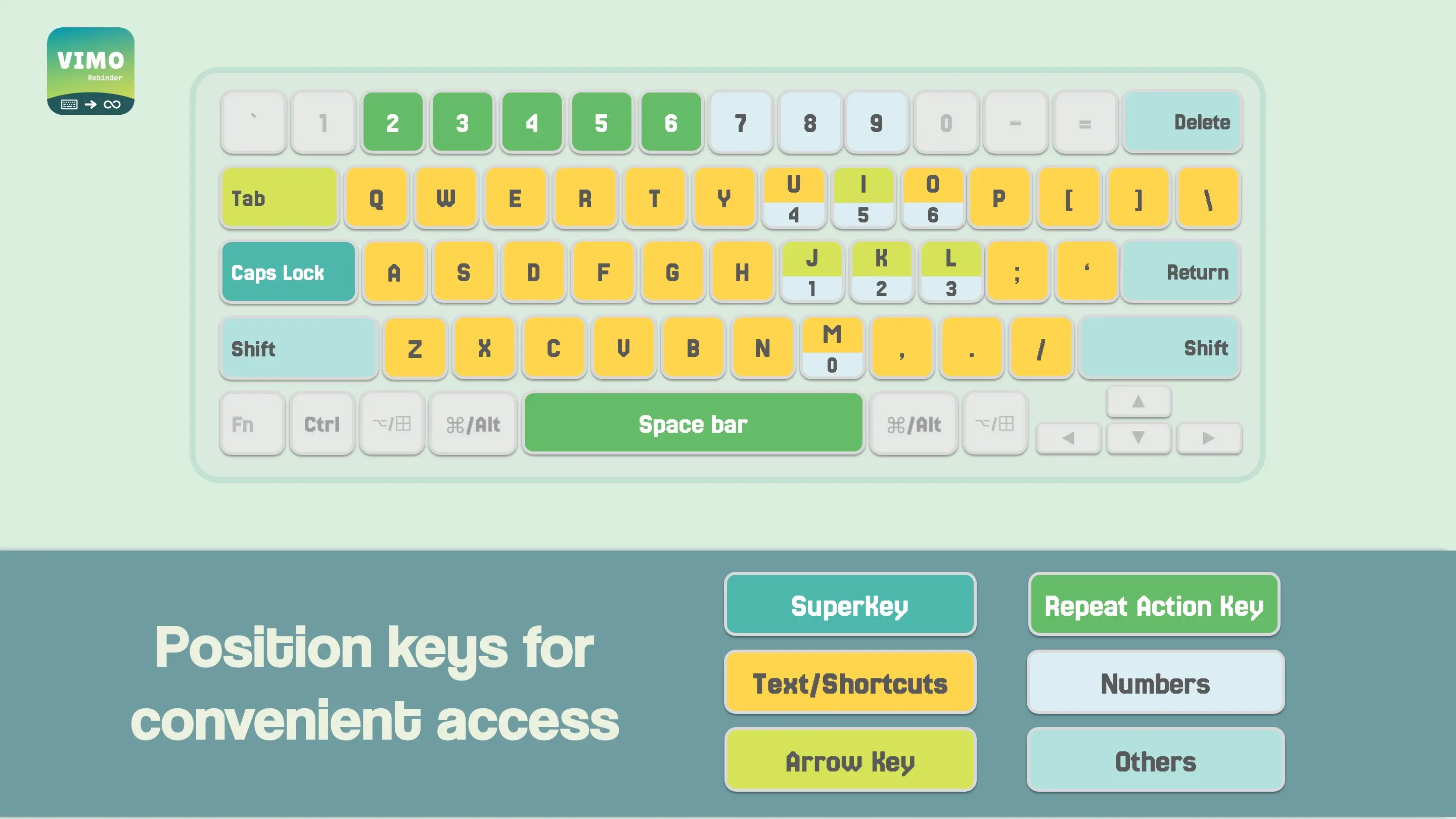
Key zones keep related actions recognizable by position.
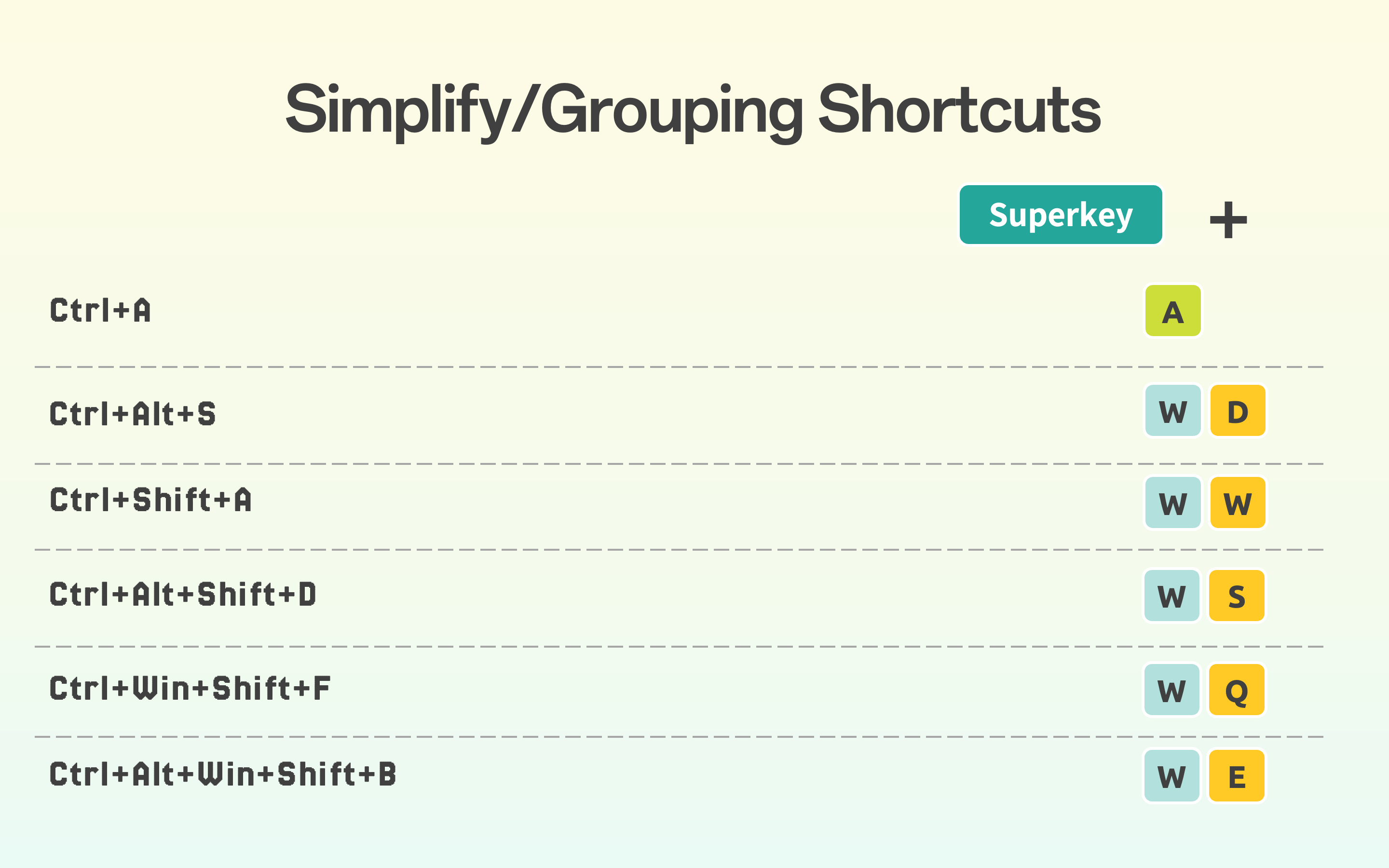
Functional groups turn scattered combinations into a command structure that can be used consistently.
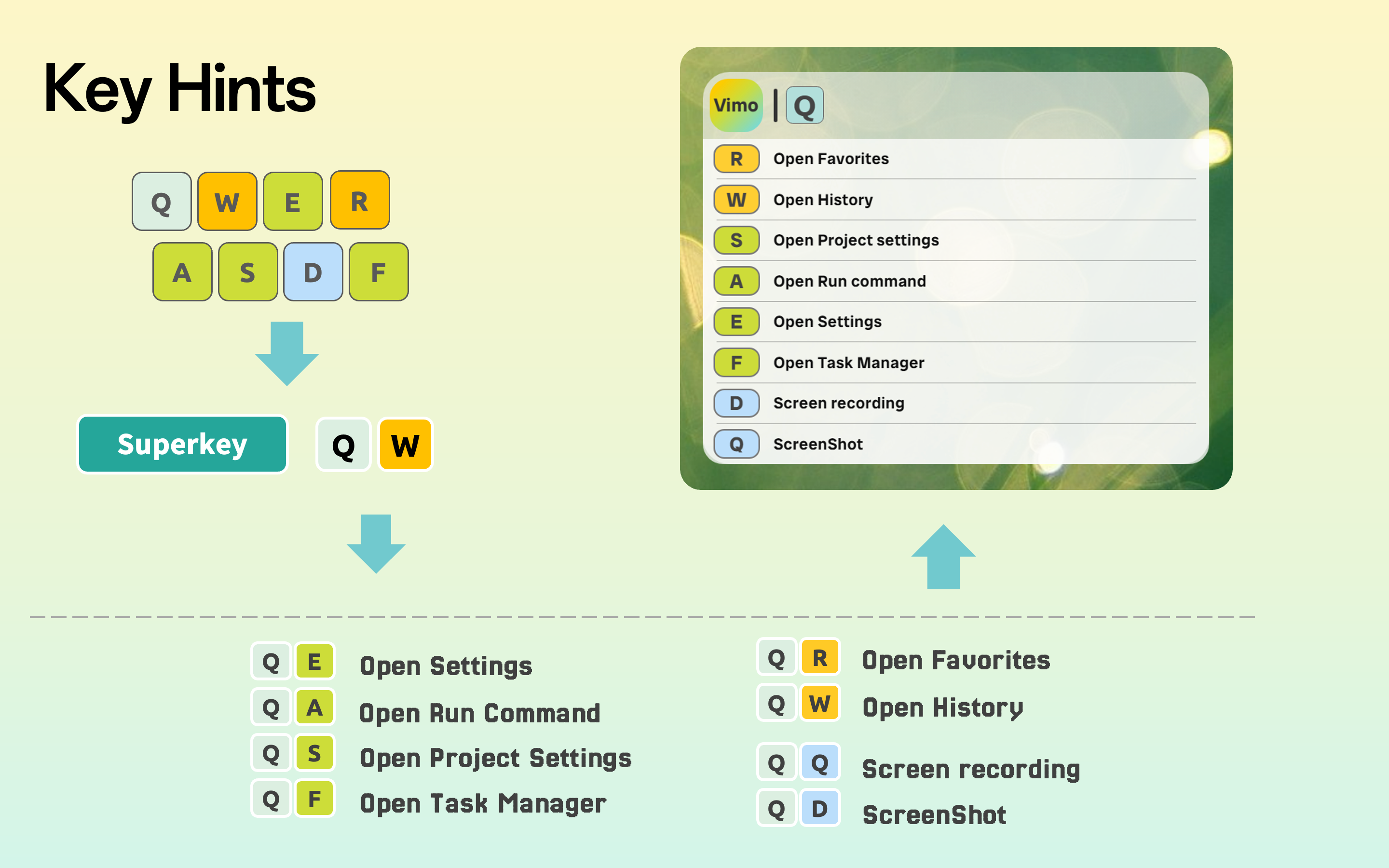
Floating Hints keep the next available actions visible in the current context.
Product Scope
Section titled “Product Scope”Vimo is designed for productivity workflows, with an emphasis on app-specific shortcut structures, visual hints, and a consistent command layer. It is not a general-purpose scripting runtime, and it does not claim to replace every remapping or automation tool.
Compatibility and behavior can vary by operating system, application, permissions, and other keyboard tools running on the same device. Platform support, licensing, and permission details are maintained on their respective reference pages.
Related References
Section titled “Related References”- Platforms & Compatibility: supported platforms, distribution, and languages.
- Licensing & Devices: plans, device limits, and purchase boundaries.
- Privacy & Permissions: local configuration, keyboard access, and online services.
- FAQ: common product and usage questions.